How to add your menu to Google Maps and Search.

When someone searches for your restaurant, Google often shows a Menu button next to your opening hours. What appears there may be your current menu, a delivery app's version, or a photo a guest took two years ago. Here's how to point Google to the menu you keep up to date, and how to clean up the old ones.

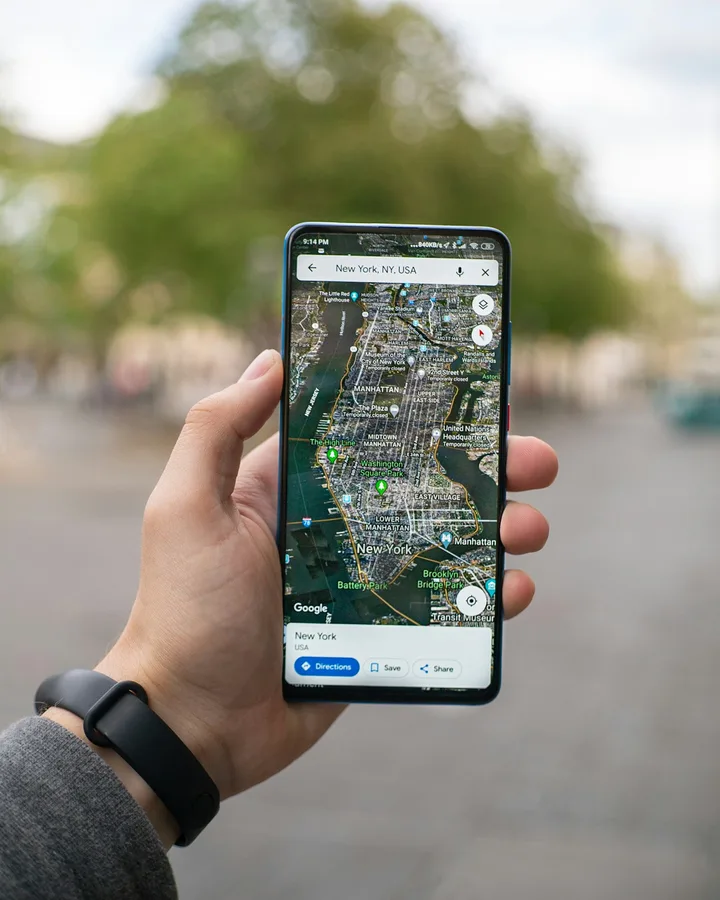
Hand holding a phone with a map app open on a city street
Photo by Mika Baumeister on Unsplash.

Where Google gets your menu

Google can pull menu information from several places:

  • the menu link you add to your Business Profile
  • menu items you type into your Business Profile
  • other websites, such as delivery apps
  • photos of your menu, uploaded by you or by guests

That's why the menu on Google can be out of date even when your own menu is current. In a Local Search Forum thread, a person managing a patisserie's profile said Google's Menu button was "in most cases showing wrong and outdated items and prices." The information seemed to come from a delivery service, and it didn't change when the weekly specials did.

When Google shows an old menu

If the wrong menu still appears after you've added your link, there are three things to try.

Choose your preferred menu. When Google finds more than one menu for your business, you can pick the one it uses. In your Business Profile, select Edit menu, open the Full menu tab, choose your preferred menu source and select Save.

Type in your menu items. Under Edit menu you can add sections and items yourself. The person managing the patisserie tried this and reported back in the same thread: "Manually inputting the menu items worked." Google then showed the typed items and dropped the outdated ones. The catch is that this copy lives only on Google. If your dishes change every week, you'll be updating two menus. They found that the hard part too.

Deal with old menu photos. You can delete photos your own account uploaded. You can't delete a photo a guest uploaded, but you can report it to Google from the photo itself. Google reviews the report and decides whether to remove it. In the meantime, upload a clear, current photo of your menu so guests have a newer one to look at.

Keep Google in step with your menu

Google's copy only stays accurate if updating it is part of your routine. A simple way to do that:

  • Make one menu the main one, usually your website or digital menu, and put that link on Google.
  • When prices change, update the main menu first. Then update anything that holds its own copy: Google's typed menu items, delivery apps and printed menus.
  • If your menu changes often, keep the items you type into Google to dishes that rarely change, and let the menu link cover the rest.
  • Once a month, search for your restaurant on your phone and tap the Menu button.

Check it like a guest would

Before you call it done, look at your profile the way a new guest would:

  • Search for your restaurant name on your phone while signed out, or in a private window.
  • Tap Menu. Does it open the menu you expect?
  • Check two or three prices against what you charge today.
  • Open your menu link on mobile data, not just on the restaurant Wi-Fi.
  • Look through the menu photos for old prices or dishes you no longer serve.

If you use Menupresso, every menu has its own link that never changes, so you can paste it into Menu link once. When you change a price in the editor and save, the page guests open from Google shows the new price. Google's own typed copy of your items doesn't update itself, so add it to your checklist if you use one.

Sources

Give Google a menu that's always current.

Build a phone-friendly menu, paste its link into your Business Profile, and update prices in one place.

Create a free menuRead the setup guide